
A monitor arm gives you more control over where your screen sits instead of relying on the fixed stand that came with your monitor. Raising, lowering, tilting, or repositioning a display can make it easier to maintain a comfortable viewing position as your work changes throughout the day.
BodyBilt monitor arms also help reclaim usable desk space by lifting displays above the work surface. That extra room can make a workstation easier to organize, particularly when paired with keyboard systems and other ergonomic tools designed to create a more adjustable workspace.
BodyBilt offers single monitor arms, dual monitor arms, extended-reach options, sit-stand configurations, and a monitor arm with a laptop platform. Browse the BodyBilt Workplace monitor arm collection to compare product options. Choosing among them starts with how many screens you use, where those screens need to move, and the specifications of your desk and displays.
Single Monitor Arms
A single monitor arm supports one display independently, giving the user greater control over screen placement while opening space underneath the monitor. Depending on the model and installation, an adjustable monitor arm can allow the screen to move vertically or horizontally and change its viewing angle.
Single monitor mounts are a practical fit for individual workstations, home offices, and employees who rely primarily on one display. A single-screen setup can also benefit users who frequently reposition their monitor for different tasks.
BodyBilt’s Keynote Core Single Monitor Arm provides a straightforward option for single-screen workstations. Users who need greater positioning flexibility can consider the Keynote Core Single Extended Reach Monitor Arm, while the Keynote Rise Single Sit-Stand Monitor Arm is intended for workstations where screen positioning needs to accommodate changes between seated and standing work.
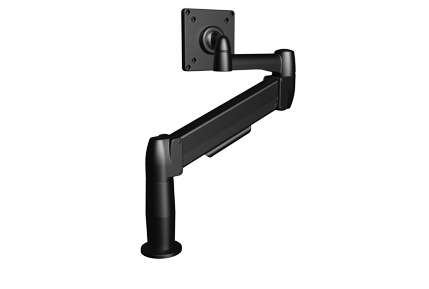
Single Monitor
Arm
Monitor Arm
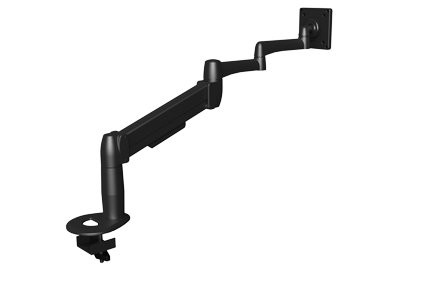
Single Extended Reach Monitor Arm
Dual Monitor Arms
A dual monitor arm supports two displays within the same workstation. Instead of placing two monitors on separate factory stands, users can position their screens to create a more cohesive viewing area while freeing additional space on the desktop.
Dual monitor arms are particularly useful for jobs that require information to remain visible across multiple applications. Programmers, analysts, designers, financial professionals, dispatchers, and other employees who regularly move information between screens may benefit from a dual-monitor workstation.
The Keynote Core Dual Monitor Arms provide a dedicated two-screen solution for users who want greater control over the placement of both displays.
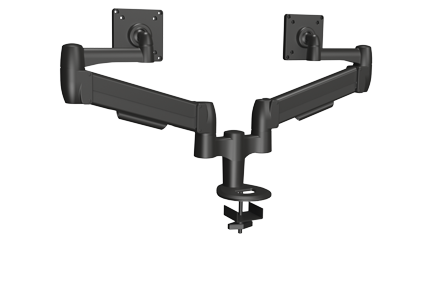
Dual Monitor
Arms
What About Multi-Monitor Workstations?
Workstations using three or more screens require more planning. Monitor count is only the starting point. Screen dimensions, total weight, available mounting space, viewing distance, and the amount of independent adjustment required all influence the final configuration.
Multi-monitor setups are common in technical, financial, security, dispatch, and intensive-use environments, where employees may need to monitor several information sources simultaneously.
For these applications, speak with BodyBilt before choosing a configuration. The goal should be to create a setup that supports the required number of displays without compromising usable desk space or practical screen positioning.
Single Monitor Arm vs. Dual Monitor Arm
The number of displays you use is the simplest way to narrow the choice, but it is not the only consideration.
| Configuration | Suitable Monitor Count | Adjustment Needs | Recommended Use |
| Keynote Core Single Monitor Arm | 1 | Standard adjustable screen positioning | Individual office and home workstations |
| Keynote Core Dual Monitor Arms | 2 | Independent positioning for a two-screen setup | Multitasking and dual-screen workflows |
| Keynote Core Single Extended Reach Monitor Arm | 1 | Greater reach and positioning flexibility | Deeper desks or screens that need greater movement |
| Keynote Rise Single Sit-Stand Monitor Arm | 1 | Positioning for seated and standing work | Adjustable and sit-stand workstations |
| Keynote Core Single Monitor Arm with Laptop Platform | 1 monitor + laptop | Combined monitor and laptop positioning | Hybrid laptop and external-monitor workflows |
How to Choose the Right Monitor Arm
A monitor arm needs to fit both the display and the workstation. Checking compatibility before ordering prevents a monitor mount that cannot safely support the screen or attach properly to the desk.
Check Monitor Size and Weight
Start with the specifications supplied by the monitor manufacturer. Screen dimensions alone do not tell you how much a monitor weighs, and larger displays can place significantly different demands on a monitor arm.
Compare the monitor's weight without its original stand against the verified weight capacity of the arm you are considering. Never exceed the manufacturer's stated capacity.
Confirm VESA Compatibility
Many monitor arms attach to standardized mounting holes on the rear of a compatible display. Check your monitor's specifications for its VESA mounting pattern and confirm that it matches the monitor arm before purchase.
A monitor without compatible mounting points may require another mounting solution or an approved adapter.
Measure the Desk
Look at the desk itself before choosing a mounting method. Measure the thickness of the work surface and inspect the area above and below the proposed mounting location.
The mount needs enough clearance to attach securely without interfering with structural supports, drawers, cable trays, or other equipment.
Consider How Far the Monitor Needs to Move
A fixed workstation may only require routine height and angle adjustment. Deep desks, collaborative workstations, and specialized applications can require considerably more reach.
An extended-reach monitor arm can provide additional positioning flexibility when a standard arm cannot bring the screen close enough to the user's preferred viewing position.
Match the Arm to Your Work Style
Think about what happens during an actual workday. Someone who stays seated at a single workstation has different requirements from an employee using a height-adjustable table or moving regularly between sitting and standing.
The best monitor arm is the one that provides the required movement without adding unnecessary complexity.
Monitor Arm Mounting Options
Monitor arms commonly attach to a desk using a clamp or a mounting point through the work surface. The appropriate method depends on the monitor-arm model, desk construction, available clearance, and how permanent the installation needs to be.
Before installation, confirm that the work surface is suitable for the specified mounting hardware. Thin, fragile, unusually shaped, or obstructed surfaces may require additional consideration.
For a larger workstation project, BodyBilt can help coordinate monitor positioning with height-adjustable tables, seating, keyboard systems, and other workspace components.
Monitor Arm Installation and Adjustment Tips
Good installation is only half the job. Once mounted, the arm should be adjusted around the person using the workstation.
A few practical steps can improve the setup:
- Secure the mount first. Follow the product installation instructions and confirm that all mounting hardware is properly tightened before attaching the display.
- Start with the primary screen directly ahead. A frequently used monitor should generally sit in front of the user rather than forcing repeated head rotation.
- Adjust screen height. Position the display so the user can view it comfortably without repeatedly lifting or dropping the head.
- Set a comfortable viewing distance. The display should be far enough away to view comfortably while keeping text and details easy to read.
- Angle secondary displays toward the user. In a dual-monitor setup, screen placement should minimize unnecessary neck movement between displays.
- Check cables through the full movement range. Leave enough slack for the arm to move without pulling on power or display cables.
- Recheck the setup after working. A position that looks correct during installation may need minor changes after several hours of real use.
Monitor placement should also work with the rest of the workstation. Screen height, keyboard position, desk height, and office seating all contribute to how comfortably someone can work.
Build a More Adjustable Workstation
A well-chosen monitor arm does more than lift a screen off the desk. It gives users greater control over screen placement, creates usable work surface, and makes it easier to adapt a workstation as tasks and technology change.
BodyBilt offers monitor arm configurations for single displays, dual monitors, extended-reach applications, sit-stand workstations, and laptop-based setups. Our team can also help you determine how monitor arms fit into a larger workplace configuration.
Contact BodyBilt to Find the Right Monitor Arm for Your Workstation
FAQ
Choose a single monitor arm if your workstation relies on one primary display. A dual monitor arm is better suited to two-screen workflows where both monitors need to remain accessible and independently positioned.
Check the monitor’s weight, size, and VESA mounting pattern against the specifications for the monitor arm. All three should be confirmed before installation, since screen size alone does not establish compatibility.
Not necessarily. Desk thickness, construction, available edge clearance, mounting hardware, and obstacles beneath the work surface can all affect compatibility. Check the requirements for the specific monitor mount before ordering.
Your primary monitor should generally be positioned directly in front of you at a comfortable viewing height and distance. Dual-monitor positioning depends on how frequently each screen is used, with the goal of reducing unnecessary head and neck movement.
Monitor arms can be an effective addition to a sit-stand workstation when the arm and desk are compatible. The screen should remain comfortably positioned in both seated and standing positions, which is why adjustment range and mounting location should be considered before installation.