
BodyBilt height-adjustable tables give users control over work surface height, making it easier to change between seated and standing positions throughout the workday. Electric controls allow the desktop, keyboard, mouse, monitors, and other equipment to move together instead of requiring the user to adapt to a fixed-height desk.
A sit-stand desk works best as part of a complete workstation. Desk height, monitor position, keyboard and mouse placement, seating, and frequently used equipment should all be considered when setting up the space.
BodyBilt offers height-adjustable tables for individual and shared workstations, with options that can be paired with monitor arms, keyboard systems, desk accessories, and supportive office seating.
BodyBilt Height-Adjustable Table Options
Series 2 Height-Adjustable Table
The BodyBilt Series 2 provides an electrically adjustable work surface for users who want to move between seated and standing work positions. Up/down push-button controls make it simple to change desk height as working preferences and tasks change.
The Series 2 is available with a 30″ x 48″ work surface and multiple laminate finishes. Its straightforward controls make it well suited to individual workstations where the user wants an uncomplicated way to adjust working height.
Series 3 Height-Adjustable Table
The BodyBilt Series 3 is another electric sit-stand desk option designed for home and office environments. Push-button height adjustment allows users to reposition the work surface when moving between sitting and standing.
Its adjustability also makes the Series 3 suitable for shared and multi-user workstations where desk height may need to change between users.
The current Series 3 is available with a 30″ x 48″ work surface and multiple laminate finish options.
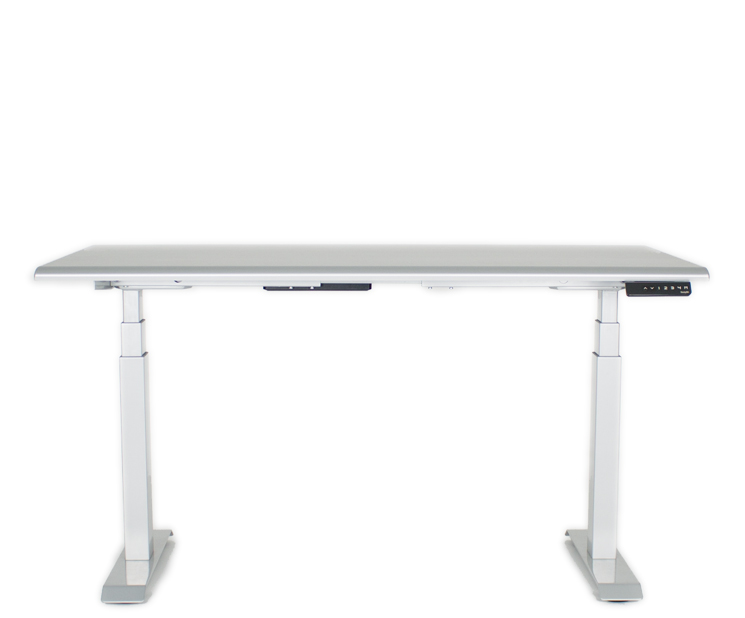
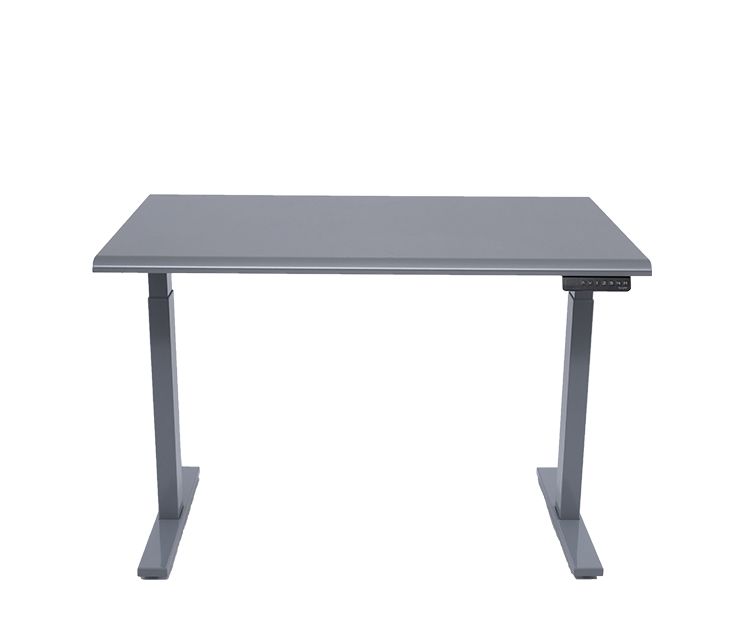
Series 2 vs. Series 3 Height-Adjustable Tables
| Feature | Series 2 | Series 3 |
| Desktop Size | 30″ x 48″ | 30″ x 48″ |
| Height Adjustment | Electric height adjustment | Electric height adjustment |
| Controls | Up/down electronic push-button control | Electronic push-button control |
| Adjustment Range | Confirm current specification sheet before publishing | Confirm current specification sheet before publishing |
| Lifting Capacity | Confirm current specification sheet before publishing | Confirm current specification sheet before publishing |
| Available Finishes | Multiple laminate options | Multiple laminate options |
| Recommended Application | Individual office or home workstation | Individual, shared or multi-user workstation |
How to Choose a Height-Adjustable Table
A standing desk should be selected around the person, equipment, and work being performed. Maximum and minimum desk height matter, but they are only part of the decision.
Consider User Height
The table needs to reach a comfortable working height when the user is both seated and standing.
A taller user may need a greater maximum height, while a shorter user may need the desktop to travel lower for comfortable seated work. This becomes particularly important in shared workstations because the adjustment range must accommodate more than one person.
Do not select a height-adjustable desk based on overall desk height alone. Compare the manufacturer’s adjustment range with the people who will actually use the workstation.
Measure the Available Desktop Space
Think about what needs to fit on the work surface.
A workstation with one monitor, keyboard, and mouse requires less room than a setup with multiple displays, a laptop, documents, phone equipment, and other frequently used tools.
The current BodyBilt Series 2 and Series 3 tables offer 30″ x 48″ work surfaces. Consider both the physical dimensions of the equipment and the space needed to work comfortably before selecting a table.
A monitor arm can also help reclaim desktop space by lifting the display away from the work surface.
Calculate Equipment Weight
The lifting system must support everything that moves with the desktop.
Include monitors, monitor arms, laptops, docking stations, keyboards, desktop computers where applicable, accessories, and other equipment when determining the total load.
Do not base the calculation on the monitor or computer alone. Confirm that the complete workstation remains within the table’s published lifting capacity.
Think About Single or Multiple Monitors
Multiple-monitor workstations need enough surface area and lifting capacity for the displays and mounting equipment.
Monitor arms can make a height-adjustable workstation easier to configure because screen height and viewing angle can be adjusted independently from the desk. BodyBilt offers single and dual monitor arm configurations for different workstation requirements.
Consider Individual vs. Shared Workstations
An individual workstation can be fitted around one person’s preferred seated and standing heights.
Shared workstations require a wider usable adjustment range because different employees may use the same desk during the day. Controls should also be easy to access so each person can quickly establish a comfortable position before beginning work.
How to Set Up a Height-Adjustable Desk for Sitting
Start with the chair rather than the desk.
Adjust your office chair so your feet are supported and you can sit comfortably against the backrest. Once the chair is positioned correctly, bring the work surface to you.
Set the Desk Height
Raise or lower the desktop until the keyboard and mouse can be used with your shoulders relaxed and your elbows comfortably near your sides.
Avoid raising the desk simply to meet an incorrectly positioned chair.
Position the Keyboard and Mouse
Keep the keyboard and mouse close enough that you do not need to repeatedly reach forward.
The mouse should sit at approximately the same working height as the keyboard. If a fixed desktop prevents comfortable input-device placement, consider an adjustable keyboard system.
Adjust the Monitor
Position the primary monitor directly in front of you at a comfortable viewing distance.
Adjust screen height so you can view your normal working area without repeatedly tilting your head upward or significantly downward. If desk height changes make monitor positioning difficult, an adjustable monitor arm provides independent control over screen height, reach, tilt, and angle.
Check the Complete Position
Once the desk, keyboard, mouse, and monitor are set, work normally for a few minutes.
Small adjustments are often more useful than trying to find a theoretically perfect measurement. Your seated setup should allow you to work without continually reaching, leaning, or repositioning equipment.
How to Set Up a Standing Desk
Do not simply raise the seated workstation until you can stand beneath it. Reset the workstation around your standing position.
Raise the Work Surface
Stand comfortably and bring the desk up until you can use the keyboard and mouse with relaxed shoulders and your elbows near your sides.
Avoid leaning your body weight onto the desk or raising your shoulders to reach the work surface.
Recheck the Keyboard and Mouse
Keep both input devices within easy reach. Your wrists should not need to bend sharply upward to reach a desktop that has been positioned too high.
Reposition the Monitor
Changing desk height may also change the relationship between your eyes and the screen.
Check monitor height and viewing distance every time you establish a standing setup. An adjustable monitor arm can make this easier, particularly for shared workstations or multiple-monitor configurations.
Consider the Surface Beneath Your Feet
Hard flooring can become uncomfortable during longer standing periods. BodyBilt's Anti-Fatigue Mat provides a cushioned standing surface for sit-stand workstations and other standing applications.
Footwear, flooring, and the length of time spent standing can all affect comfort.
Sitting vs. Standing: Focus on Changing Position
A height-adjustable desk should provide options, not replace sitting with standing for the entire workday.
Some tasks may feel more natural while seated. Others may provide a convenient opportunity to stand. Phone calls, short meetings, reading, or routine computer tasks can provide natural points for changing position without disrupting the workflow.
There is no universal sitting-to-standing schedule that works for every employee. Start with manageable periods, pay attention to comfort, and change position before either sitting or standing begins to feel prolonged.
Movement can also happen away from the workstation. Walking to a meeting, retrieving a document, taking a normal break, or changing tasks can all provide opportunities to leave a fixed working position.
The objective is a workstation that adapts as the workday changes.
Build the Whole Sit-Stand Workstation Around the User
Desk height is only one part of a successful sit-stand setup.
When the table moves, everything attached to or resting on the work surface moves with it. Monitor placement, keyboard position, cables, computers, accessories, and storage therefore need to work across the desk’s full usable range.
Useful additions can include:
- Monitor arms for independent screen positioning
- Keyboard systems for greater control over keyboard and mouse placement
- Anti-fatigue mats for a cushioned standing surface
- Desk accessories for laptop positioning, document placement, lighting, and workstation organization
- Office seating for the seated portion of the workday
Cable management also deserves attention. Cables should have enough slack for the desk to travel through its full adjustment range without pulling against equipment or becoming caught in moving components.
Before Ordering a Sit-Stand Desk
Measure the workstation and document the equipment before choosing a table.
Confirm:
- The minimum and maximum height required by the user or users.
- Available floor space and required desktop dimensions.
- The total weight of equipment that will move with the desk.
- The number and size of monitors.
- Monitor-arm or keyboard-tray mounting requirements.
- Computer, docking station, and cable-management needs.
- Clearance above and below the work surface.
- Power access across the full adjustment range.
For larger installations, repeat this process for each workstation type rather than assuming every department has identical requirements.
Create a More Adjustable BodyBilt Workstation
BodyBilt can help organizations combine height-adjustable tables with seating, monitor arms, keyboard systems, and workplace accessories to create workstations suited to individual employees or shared environments.
Need help selecting a table or planning a larger sit-stand workstation project?
Contact BodyBilt for Height-Adjustable Table Recommendations
Frequently Asked Questions
There is no single standing desk height that works for everyone. Adjust the work surface so you can use the keyboard and mouse with relaxed shoulders and your elbows comfortably near your sides. Then position the monitor independently so the screen can be viewed without repeatedly bending or extending your neck.
There is no universal schedule suitable for every person. Use the height-adjustable desk to change position periodically based on your tasks and comfort rather than attempting to sit or stand continuously for the entire workday.
Compare the desk’s height range, desktop dimensions, lifting capacity, controls, stability, equipment requirements, and available workspace. Shared workstations should also accommodate the height requirements of multiple users.
A monitor arm is not required, but it can make a sit-stand workstation easier to adjust. It allows screen height, reach, and viewing angle to be changed independently from the desktop, which can be particularly useful with multiple monitors or shared desks.
Yes, provided the table and tray are compatible and there is adequate mounting clearance beneath the work surface. An adjustable keyboard tray can provide additional control over keyboard and mouse positioning in both seated and standing configurations.